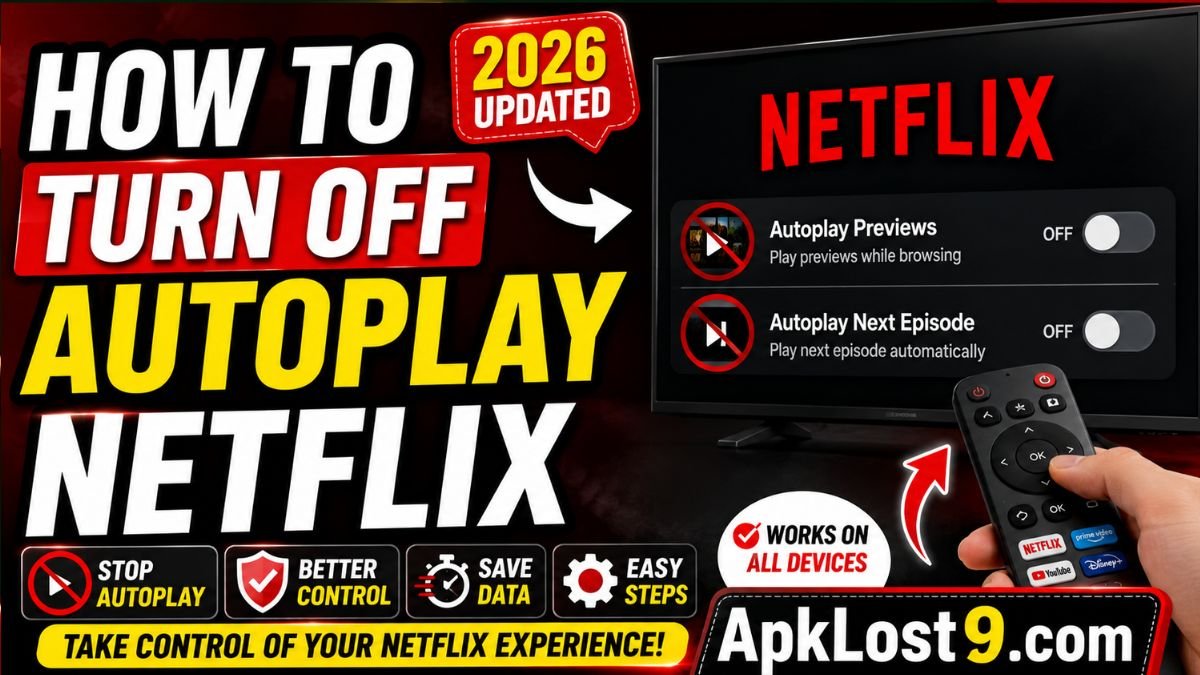
Netflix autoplay can be convenient when you want to continue watching a series without touching the remote. However, automatic playback can also become annoying when Netflix starts playing previews while you browse or immediately starts the next episode when you are not ready.
The good news is that Netflix provides separate settings for autoplay previews and autoplaying the next episode. You can turn either feature off from your profile settings.
What Does Autoplay Mean on Netflix?
Netflix has two main autoplay options that users commonly want to disable.
Autoplay Previews automatically plays trailers or previews while you browse Netflix.
Autoplay Next Episode automatically starts the next episode after you finish watching the current one.
These are separate settings, so turning off one does not necessarily disable the other.
How to Turn Off Netflix Autoplay on a Phone
You can change Netflix autoplay settings from the Netflix app on supported Android phones, tablets, iPhones, and iPads.
Turn Off Autoplay Previews
Follow these steps:
- Open the Netflix app.
- Select your profile.
- Tap My Netflix in the lower-right corner.
- Tap your profile name at the top.
- Select Manage Profiles.
- Choose the profile you want to change.
- Find Autoplay Previews.
- Turn the setting off.
On iPhone and iPad, tap Done after changing the setting.
After this change, Netflix should stop automatically playing previews while you browse.
How to Stop Netflix From Automatically Playing the Next Episode
If your main problem is Netflix starting another episode immediately after one finishes, you need to disable Autoplay Next Episode.
On Android, iPhone, and iPad:
- Open Netflix.
- Select your profile.
- Tap My Netflix.
- Tap your profile name.
- Select Manage Profiles.
- Choose the profile you want to edit.
- Turn off Autoplay Next Episode.
- On iPhone or iPad, tap Done.
Netflix confirms that this setting controls whether the next episode of a series starts automatically.
How to Turn Off Netflix Autoplay on a Computer
If you normally watch Netflix through Chrome, Edge, Safari, Firefox, or another web browser, you can change autoplay settings from your account.
Disable Autoplay Previews on Netflix Web
- Open Netflix in your browser and sign in.
- Go to your Account page.
- Open Profiles.
- Select the profile you want to modify.
- Choose Playback settings.
- Find Autoplay previews.
- Turn the option off.
Netflix says the preference is updated automatically, although you may need to refresh the device before the change appears.
Disable Autoplay Next Episode on Netflix Web
To stop Netflix from automatically starting another episode:
- Open your Netflix account in a browser.
- Go to Profiles.
- Select the relevant profile.
- Open Playback settings.
- Turn off Autoplay Next Episode.
The setting is saved automatically.
Why Is Netflix Still Autoplaying After I Turn It Off?
If autoplay continues after changing the setting, don’t immediately assume that the feature is broken.
Netflix recommends refreshing the device after changing playback preferences. You can switch to another profile and then return to your original profile, or sign out of Netflix and sign back in.
Another important point is that Netflix autoplay settings are profile-specific. If you changed the setting on one profile but are watching Netflix through another profile, the other profile may still have autoplay enabled.
Can You Turn Off Both Netflix Autoplay Features?
Yes. If you want Netflix to stop automatically playing both previews and subsequent episodes, turn off both settings:
- Autoplay Previews
- Autoplay Next Episode
Because these settings control different types of automatic playback, disabling both provides greater control over how Netflix behaves.
Does Turning Off Autoplay Affect Your Netflix Account?
No. Turning off autoplay does not cancel your Netflix membership or remove your viewing history. It simply changes how content starts playing on the selected profile.
You can also turn the settings back on whenever you want by following the same steps and switching the relevant option on.
What About Netflix’s “Are You Still Watching?” Message?
Turning off autoplay should not be confused with Netflix’s “Are you still watching?” prompt.
Netflix explains that this message is designed to help prevent users from losing their place or using internet data when they are no longer actively watching. On TVs and streaming devices, the prompt can appear after three episodes and 90 minutes of uninterrupted viewing.
Disabling autoplay is therefore useful if you want more control over what starts playing, but it does not necessarily remove every Netflix playback prompt.
Important Netflix Autoplay Tips
If you want a more controlled Netflix experience, consider these tips:
- Turn off Autoplay Previews if trailers annoy you while browsing.
- Turn off Autoplay Next Episode if you do not want automatic binge-watching.
- Check the setting for the correct Netflix profile.
- Refresh Netflix after changing playback settings.
- Sign out and sign back in if the change does not appear.
- Keep the Netflix app updated.
- Review your playback settings occasionally because Netflix can introduce new features and interface changes.
Final Verdict
If you have been searching for how to turn off autoplay on Netflix, the process is straightforward. Netflix provides separate controls for autoplay previews and autoplaying the next episode.
On mobile devices, open Netflix → My Netflix → Profile Name → Manage Profiles, select your profile, and turn off the appropriate autoplay option. On a computer, open Account → Profiles → Playback settings and disable the setting you no longer want.
If the change does not take effect immediately, refresh Netflix by switching profiles or signing out and signing back in. This simple adjustment can make browsing Netflix less distracting and give you more control over when videos start playing.
Frequently Asked Questions
How do I stop Netflix from automatically playing previews?
Go to Manage Profiles, select your profile, and turn off Autoplay Previews.
How do I stop Netflix from playing the next episode?
Turn off Autoplay Next Episode in your profile’s playback settings.
Can I turn off Netflix autoplay on my phone?
Yes. Netflix supports these profile settings on supported Android phones, tablets, iPhones, and iPads.
Why does Netflix still autoplay after I disabled it?
Refresh Netflix by switching profiles or signing out and signing back in. Netflix says the updated preference may require a device refresh to take effect.